
Thanks for picking up the Clawdmeter case from 3DJupp. This page gets you from a box of parts to a working desk buddy that keeps an eye on your Claude Code usage.
What’s in the box
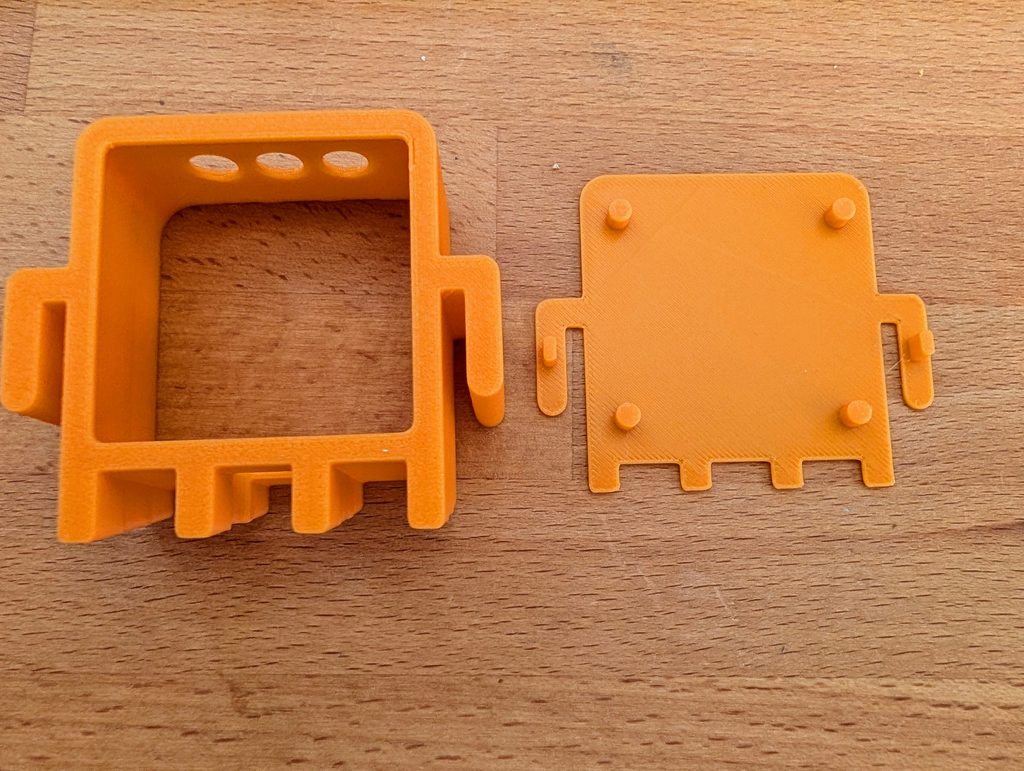
The printed case in two parts: the body and the clip-on back cover. The electronics are not included in all variants. You need a Waveshare ESP32-C6-Touch-AMOLED-2.16, which is the board the case was designed and measured against. The ESP32-S3 version of the same board uses the same display and will probably fit, but it hasn’t been tested yet.
Assembly
No screws, no glue.
- Pull the back cover off the body.
- Press the board in gently from behind, display facing forward. Don’t force it; it should seat with light pressure.
- Clip the back cover back on.
Tip: flash the firmware before you close the case, so the USB port is easy to reach while you’re setting things up.
Choose your setup
Option A: Usage meter (Windows, macOS, Linux)
The device shows how much of your Claude session and weekly quota is left, and plays little pixel animations that get busier the faster you burn through it.
- Flash Hermann Björgvin’s original firmware. Instructions for all three operating systems are in his repository: https://github.com/HermannBjorgvin/Clawdmeter
- Pair the device over Bluetooth. It shows up as „Clawdmeter“.
- Install the small background app (the „daemon“) from the same repository. It reads your Claude Code login, checks your usage every minute and sends it to the display.
You need Claude Code installed and logged in with an active subscription.
Option B: Live status buddy (Windows only)
On top of the usage meter, the character on screen acts out what Claude Code is doing right now: thinking, writing code, waiting for your permission, or out of quota.
- Flash this firmware fork instead of the original: https://github.com/juppeee/Clawdmeter (branch
csb-buddy). Flashing works exactly as described in Hermann’s repository. - Pair the device over Bluetooth as above.
- Install the Claude Session Browser: https://github.com/juppeee/claude-session-browser. It reads your Claude Code sessions and sends the current state to the device.
Using the device
- Tap the screen to switch between the animation screen and the usage view.
- Middle button: on the animation screen, cycles through the animations.
- Hold the middle button for 3 seconds, then release to enter pairing mode. Use this if you want to pair with a different computer or the connection gets stuck.
- Left button: hold to send Space (push to talk in Claude Code voice mode).
- Right button: sends Shift+Tab (switches Claude Code modes).
Note: the side buttons act like a Bluetooth keyboard, so they type into whatever window currently has focus.
Troubleshooting
- Device not found: make sure it’s powered, in range and paired in your Bluetooth settings.
- Token expired / error 401: run
claude loginagain, then restart the background app. - Connection keeps failing: turn Bluetooth off and on again on your computer, or put the device back into pairing mode (hold middle button 3 seconds) and pair again.
Credits and sources
- Clawdmeter device and firmware: Hermann Björgvin, https://github.com/HermannBjorgvin/Clawdmeter
- Case design: 3DJupp, https://makerworld.com/en/models/3116911-clawdmeter-case-desk-buddy-for-claude-code
- Firmware fork and Claude Session Browser: 3DJupp, https://github.com/juppeee
All software mentioned here is free and open source. You buy the printed case only; the software is not part of the sale and is provided by its authors as is.
Claude and Claude Code are trademarks of Anthropic. Waveshare is a trademark of its respective owner. This product is an independent fan project and is not affiliated with, endorsed or sponsored by Anthropic or Waveshare.
Questions? Contact me via Etsy or at 3djupp.de.

Schreibe einen Kommentar